Deploying the NuGet Gallery
To run the NuGet Gallery in Azure you need to provision the following resources:- A SQL Database to hold the package metadata.
- A location in which to store package files. The Gallery supports two at the moment: Local File System and Azure Storage Account.
- A Web Frontend to host the Gallery.
Deploying to Azure
We suggest using Azure to host the gallery, as that is the environment used by https://www.nuget.org itself. When doing so, we suggest using Azure SQL Databases for the database and Azure Storage to store packages. This guide will instruct you on hosting the Gallery to an Azure App Service. We will start with provisiong the supporting resources (Database, Storage, etc.).Provisioning for Azure
Provisioning a Database
We recommend provisioning a dedicated Azure SQL Databases Server for the Gallery. Follow the instructions here to create an Azure SQL Database. After you create your Azure SQL Database, update the server’s firewall settings to allow access from other Azure resources:- Navigate to the “SQL Servers” blade.
- Select your SQL Server.
- Under the “Security” section, select “Firewall and and virtual networks”.
- Make sure that “Allow Azure services and resources to access this server” is set to “Yes”.
- Open the NuGetGallery solution in Visual Studio.
- Open the web.config and replace the Gallery.SqlServer connection string with this value.
- Expand the “Package Manager Console” tool window:
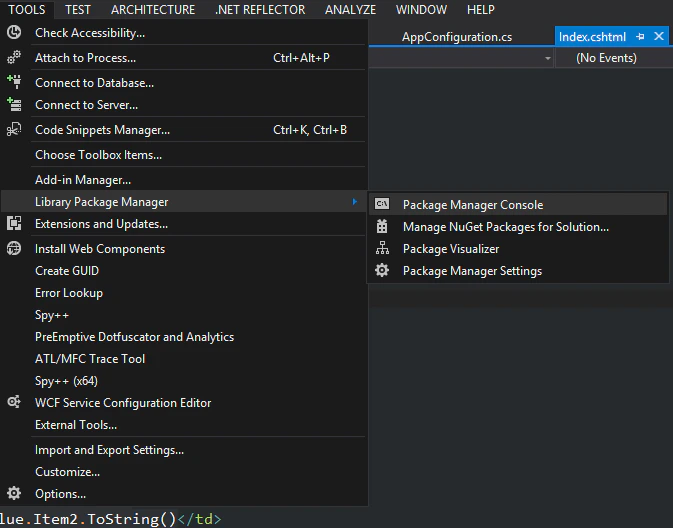
- In the Package Manager console, type the following command:
Provisioning Storage Accounts
Follow the instruction here to create an Azure storage account. Copy the connection string from the portal. It should like something like:- Open the web.config
- Set Gallery.StorageType to ‘AzureStorage’
- Replace all settings starting with ‘Gallery.AzureStorage.’ with your connection string.
Deploying the Frontend/Backend
You are almost done! Here are additional configurations in web.config:- Gallery.SiteRoot - set with the URL of your Gallery website. For example: https://mygallery.azurewebsites.net
- Gallery.AppInsightsInstrumentationKey - set to the Application Insights instrumentation key to capture telemetry. Useful for debugging!